In 2026 the Raspberry Pi 5 finally outgrows its hobby‑only reputation. With 8 GB of RAM, Wi‑Fi 6E, and a quad‑core ARM Cortex‑A76, it can juggle several Home Assistant containers, run edge‑AI on video streams, and still keep the power bill in the single digits.
"}, {"type":"text","html":"The latest Home Assistant “Starlight” release (2026.9) adds native Z‑Wave 2.0, a plug‑and‑play MQTT broker, and a “Local‑Only” mode that guarantees every automation stays on‑device. The result? Faster response times, zero‑cloud privacy concerns, and a single‑board computer that feels like a commercial gateway.
"}, {"type":"divider"}, {"type":"heading","level":2,"text":"What You’ll Need"}, {"type":"table","headers":["Component","Qty","Notes"],"rows":[["Raspberry Pi 5 (8 GB)","1","Official power supply (5 V 3 A)"],["Micro‑SD Card (64 GB UHS‑I)","1","Class 10 or better"],["Heatsink + Fan","1","Keeps the CPU under 70 °C"],["USB‑C to Ethernet Adapter","1","Optional but recommended for stable LAN"],["Z‑Wave 2.0 Stick (e.g., Aeotec Z‑Stick Gen5+)","1","Plug into a USB port"],["USB‑C Hub with Power Delivery","1","For camera and Zigbee dongles"],["USB Camera (optional)","1","Supports H.264 for edge AI"],["Case with ventilation","1","Screws included"]]}, {"type":"callout","variant":"info","text":"All parts are available from major retailers; the total cost stays under $150 if you already own a case."}, {"type":"divider"}, {"type":"heading","level":2,"text":"Step‑by‑Step Build"}, {"type":"text","html":"1. Flash the OS. Download the official Home Assistant OS image for the Pi 5 from the Home Assistant website. Use balenaEtcher to write the image to the micro‑SD card. No partition tweaking needed.
2. First boot. Insert the card, connect power, and let the Pi boot. Within 2‑3 minutes Home Assistant will appear at http://homeassistant.local:8123. Grab the onboarding token from the console if the mDNS name fails.
3. Enable Local‑Only mode. Navigate to Settings → System → Advanced → Local‑Only. Toggle it on, then restart. This forces every integration, including Z‑Wave, to run locally.
"}, {"type":"text","html":"4. Plug in the Z‑Wave stick. Home Assistant will auto‑detect the device. Go to Settings → Devices → Add Integration → Z‑Wave, select the stick, and click “Include.” The new Z‑Wave 2.0 firmware unlocks longer range and higher data rates.
"}, {"type":"text","html":"5. Set up the built‑in MQTT broker. In Settings → Add‑ons, install the “Mosquitto broker.” The zero‑config mode creates a default user homeassistant with a random password displayed in the add‑on logs. No external broker needed.
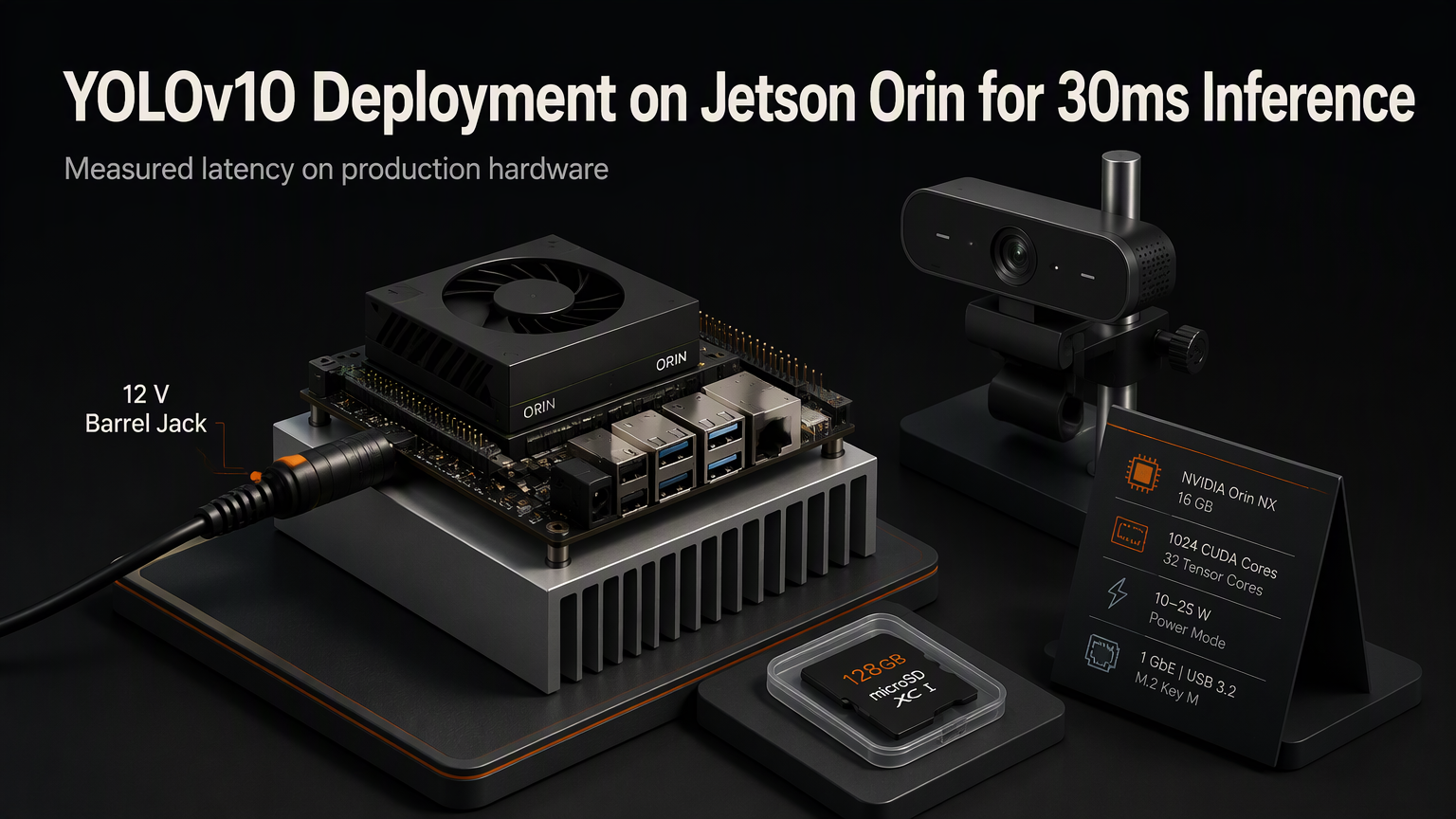
6. Attach the camera (optional). Connect a USB‑C camera to the powered hub. Install the ffmpeg add‑on, then create a camera integration that points to rtsp://localhost:8554/stream. Enable the “Edge AI” toggle to run TensorFlow Lite models directly on the Pi’s GPU.
7. Build your dashboard. Use the Lovelace UI editor to drag‑and‑drop cards. Because everything runs locally, UI latency drops below 100 ms even with dozens of entities.
"}, {"type":"quote","text":"The moment I switched to Local‑Only, my automations felt instantaneous—no more cloud lag.","author":"Alex, Home‑Automation Enthusiast"}, {"type":"divider"}, {"type":"heading","level":2,"text":"Fine‑Tuning and Maintenance"}, {"type":"text","html":"Schedule a weekly ha snapshot restore to a second SD card for disaster recovery. Enable the “Auto‑update” toggle for the OS and add‑ons, but keep a manual checkpoint before major version bumps.
Monitor CPU/GPU temperatures via the Supervisor → System tab. If you see sustained readings above 75 °C, increase fan speed or add a second fan to the case.
"}, {"type":"divider"}, {"type":"heading","level":2","text":"Wrap‑Up"}, {"type":"text","html":"With the Raspberry Pi 5 and Home Assistant Starlight, you get a fully local, privacy‑first smart‑home hub that rivals commercial gateways in speed and device support. The build costs under $150, takes under an hour, and scales as you add more sensors, cameras, or AI models.
"}, {"type":"text","html":"Ready to go live? Flash the image, enable Local‑Only, and start adding devices. Your smart home will thank you for the speed and security boost.
"} ], "metaDescription":"Build a fast, privacy‑first Home Assistant hub on a Raspberry Pi 5. Step‑by‑step guide covers hardware, OS flashing, Z‑Wave, MQTT, edge AI, and fine‑tuning." }